日常使用-JetbrainsIDE
一、常用插件
导入GoLand配置: File -> Manage IDE Settings -> Import Settings…
1. 通用插件
IdeaVim - 集成vim基础操作
GitToolBox - Git插件
Translation - 翻译
Rainbow Brackets - 括号着色
GrepConsole - 日志着色,Tail日志文件
Awesome Console - 控制台增强(如文件地址可以点击打开)
leetcode editor
2. IDEA插件
Maven Helper - 查看依赖树,便于排除依赖等
Maven Dependency Helper - 便捷查询maven坐标
Free Mybaits puglin - 支持接口和mapper跳转等
SequenceDiagram - 生成时序图
FindBugs-IDEA - 代码审查
Java Stream Debugger - Stream可视化Debug
GenerateAllSetter
二、IDE配置
1. 通用配置
1)配置编辑器的tab栏
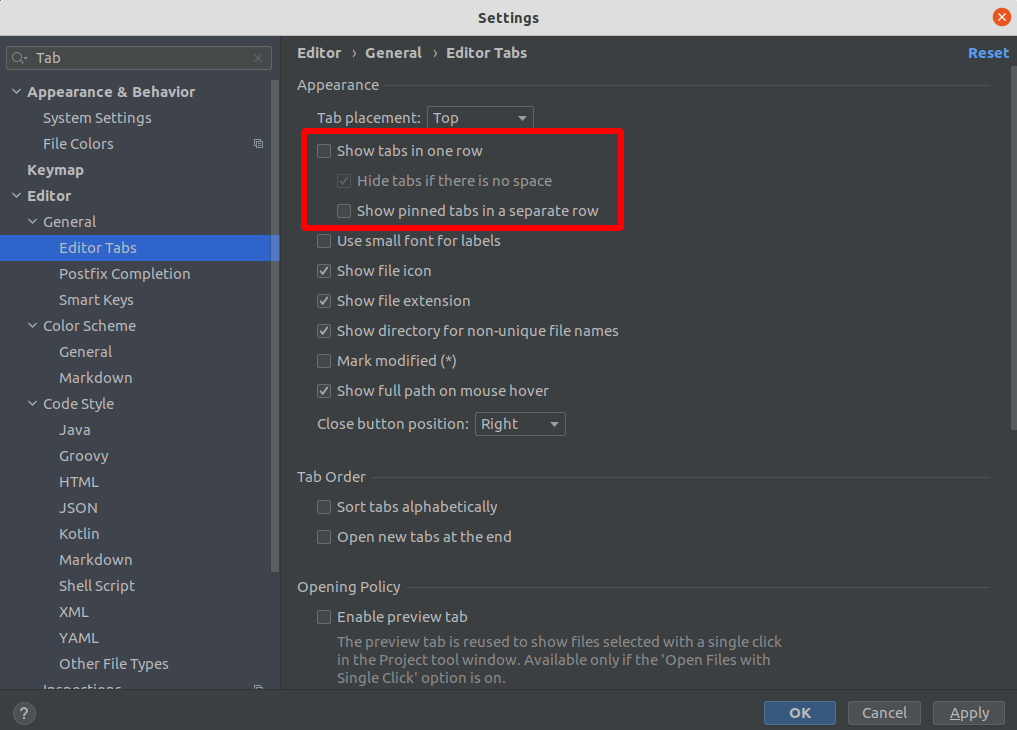
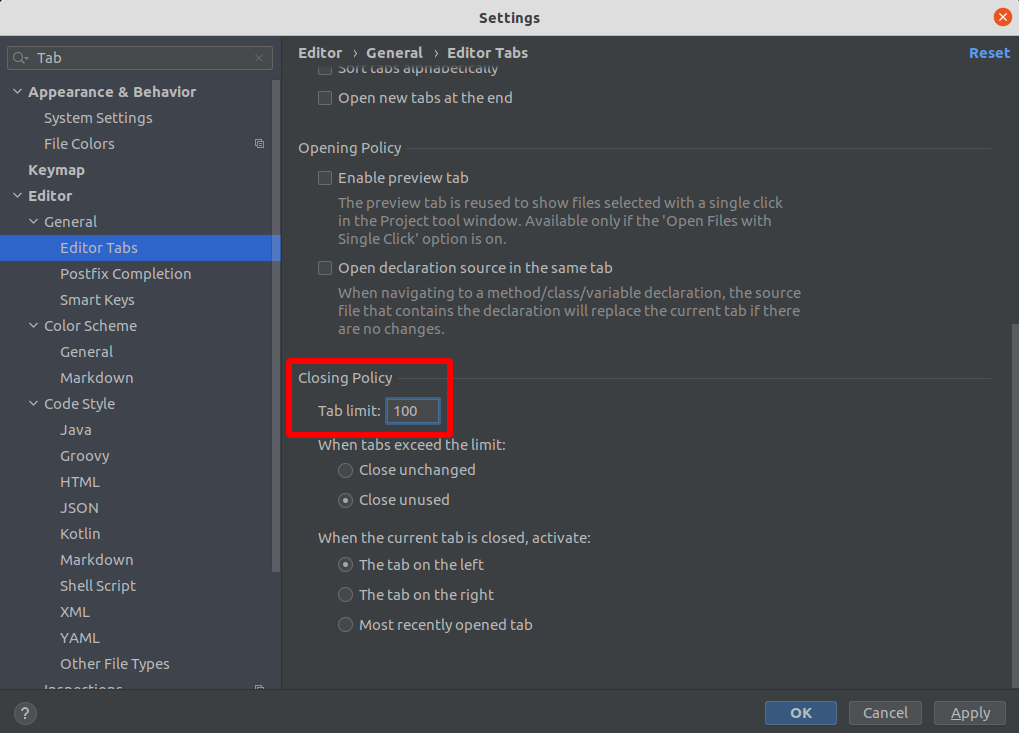
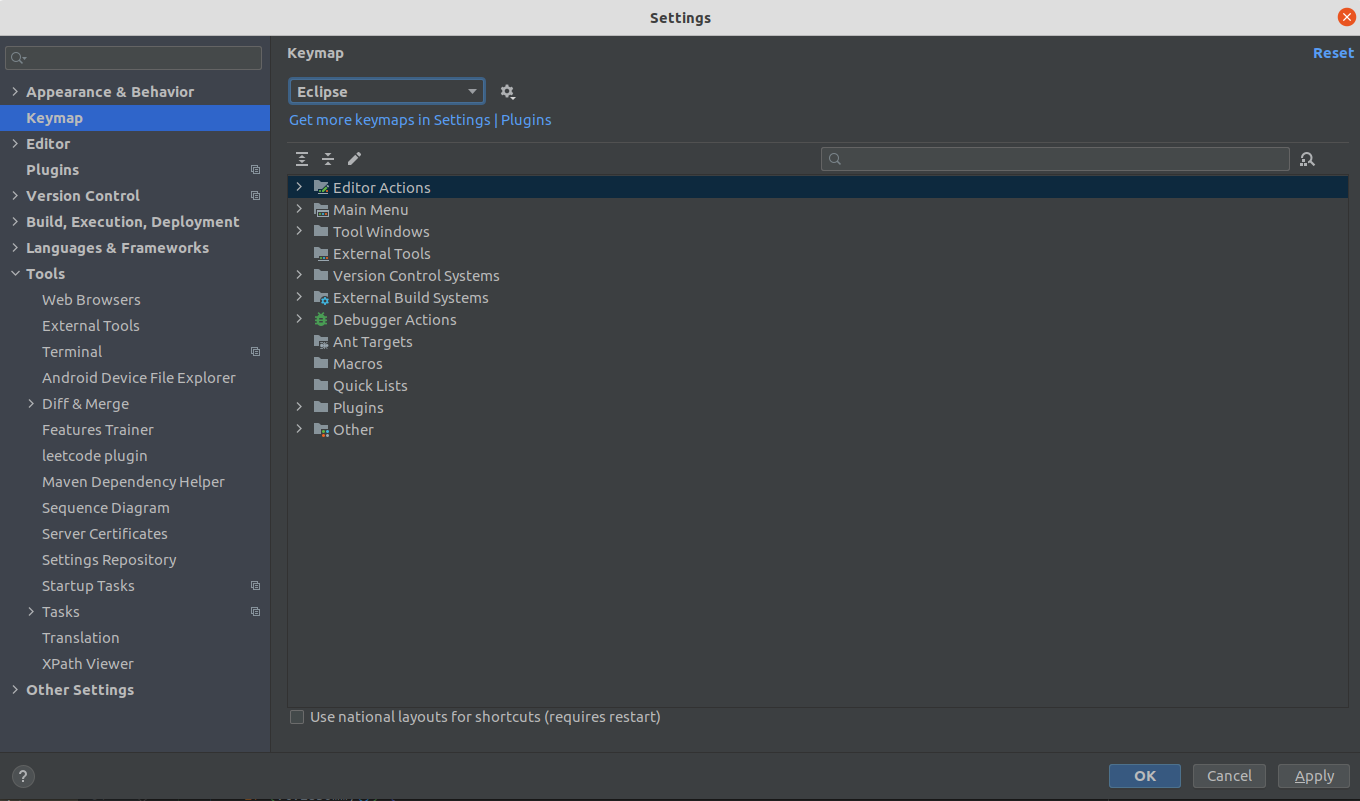
2)配置keymap为eclipse
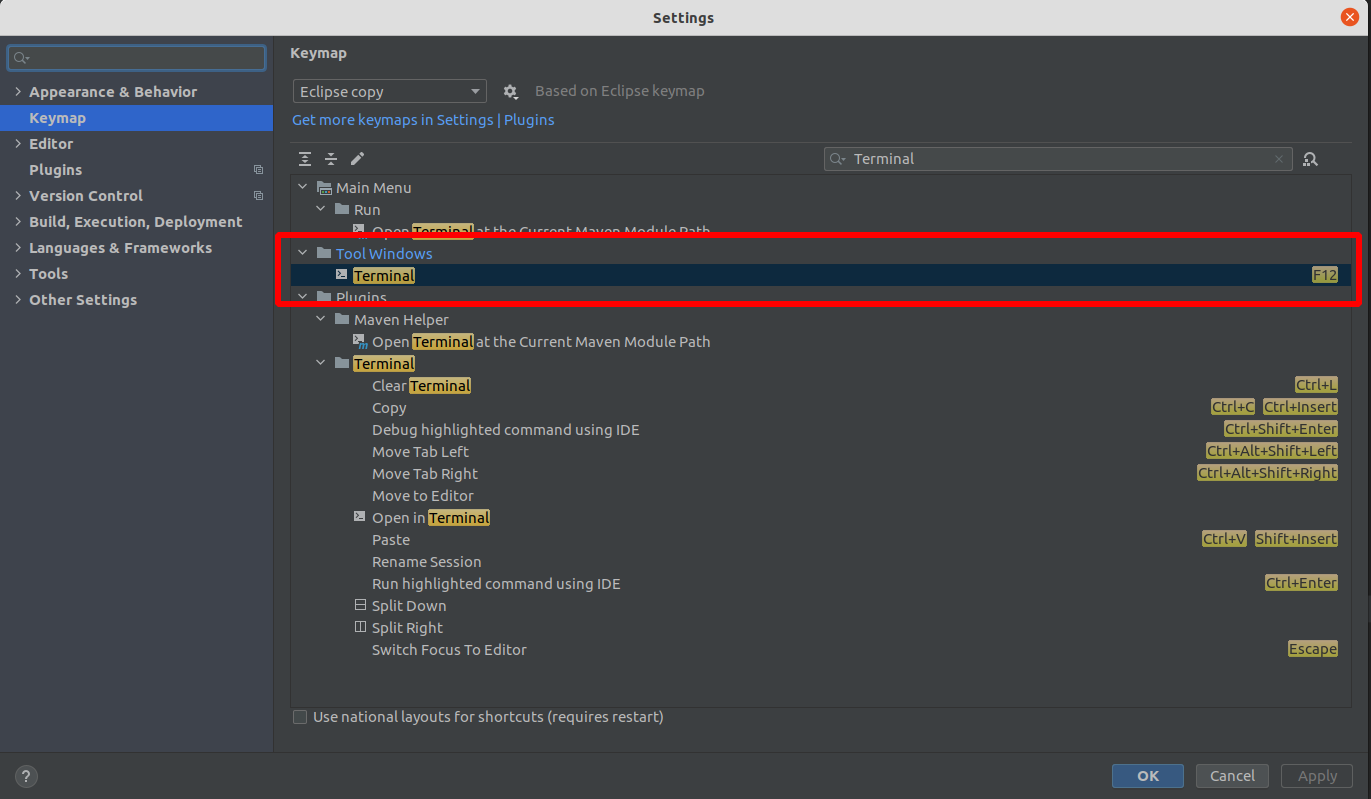
3)设置常用快捷键
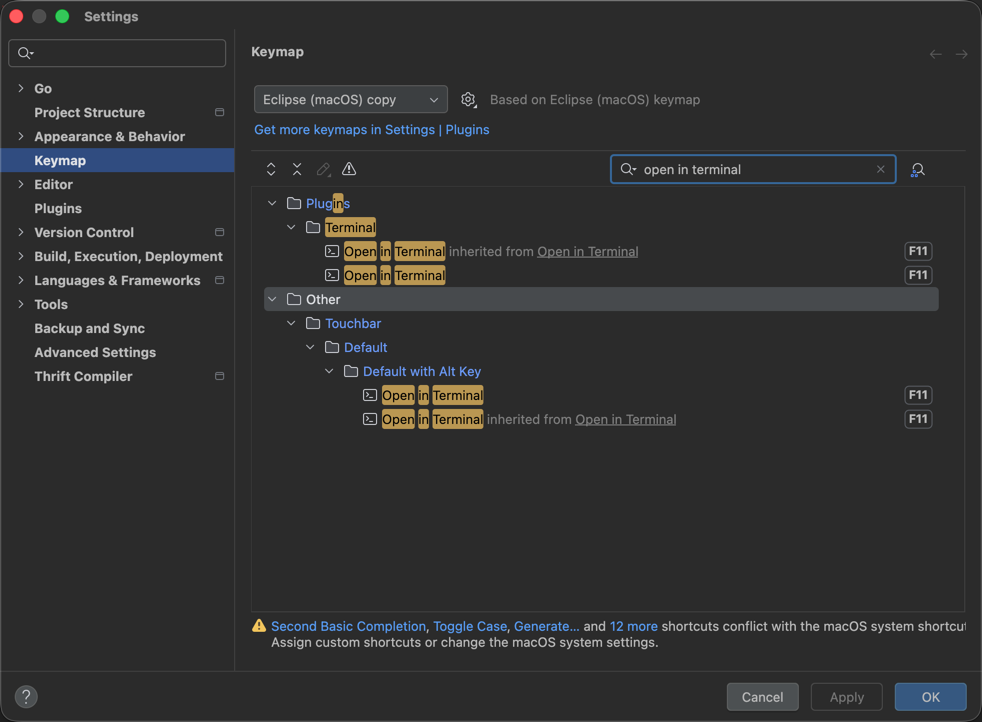
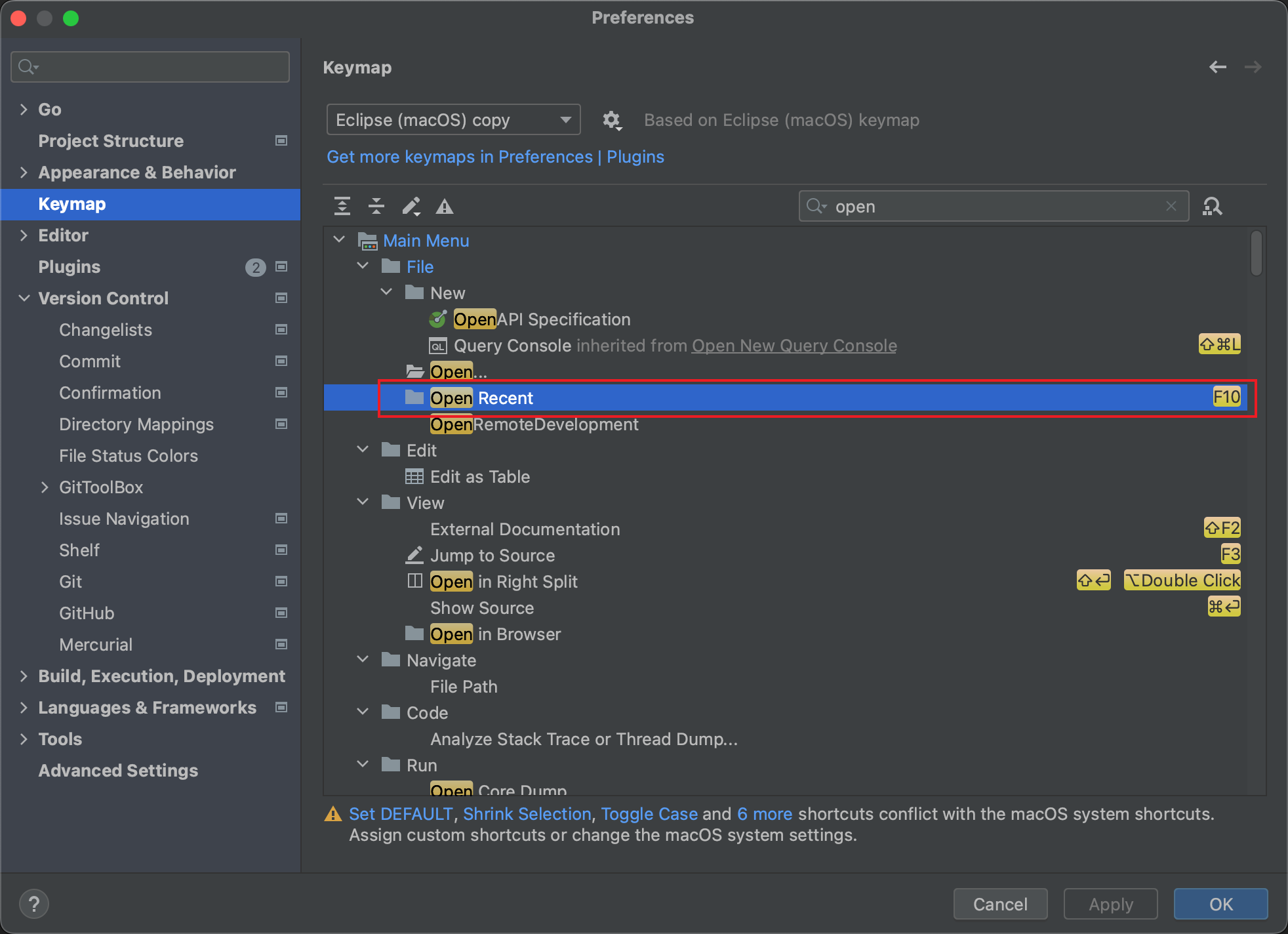
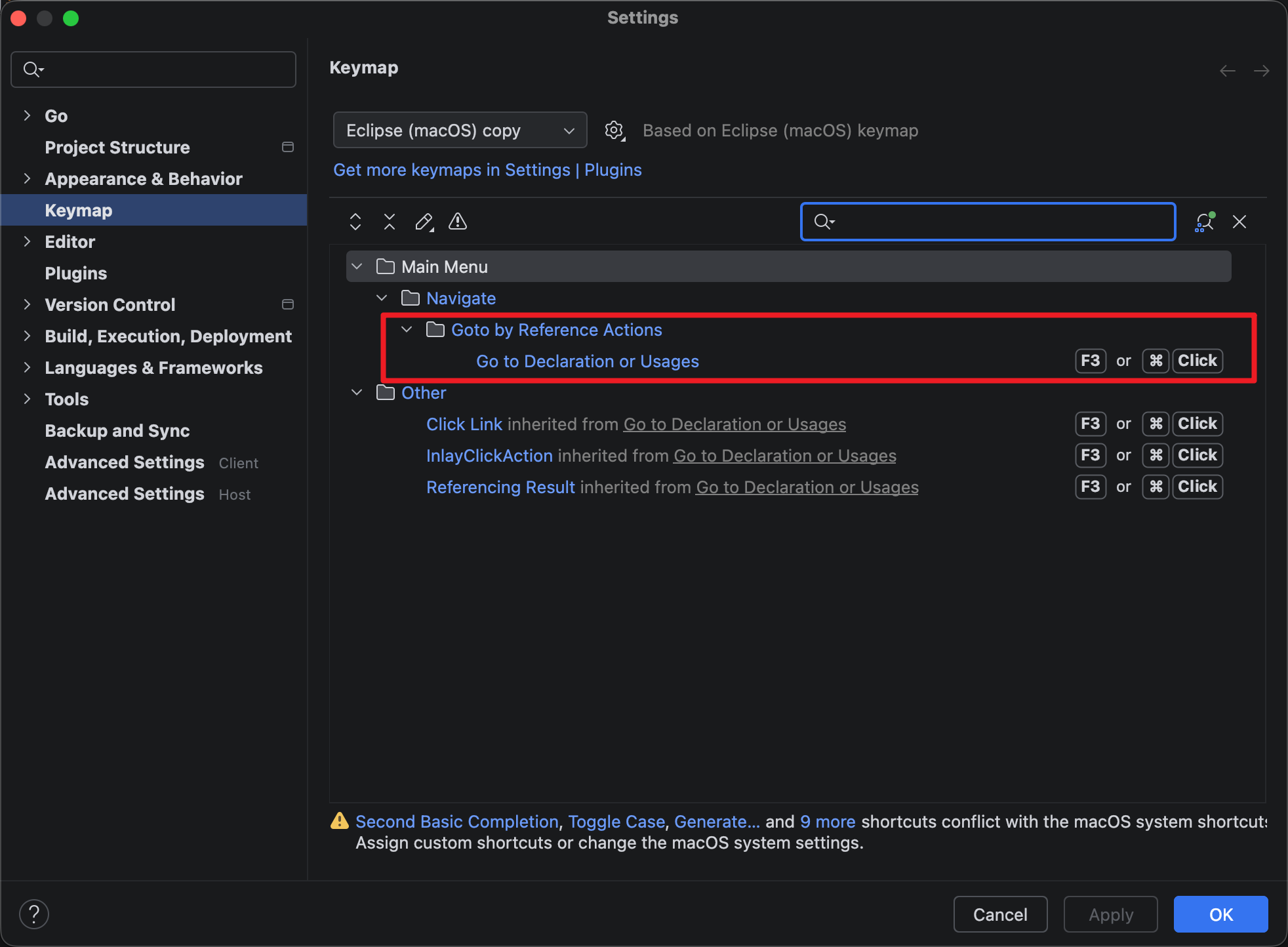
跳转快捷键(场景:ctrl + Click点击函数跳转,修改为command + Click)
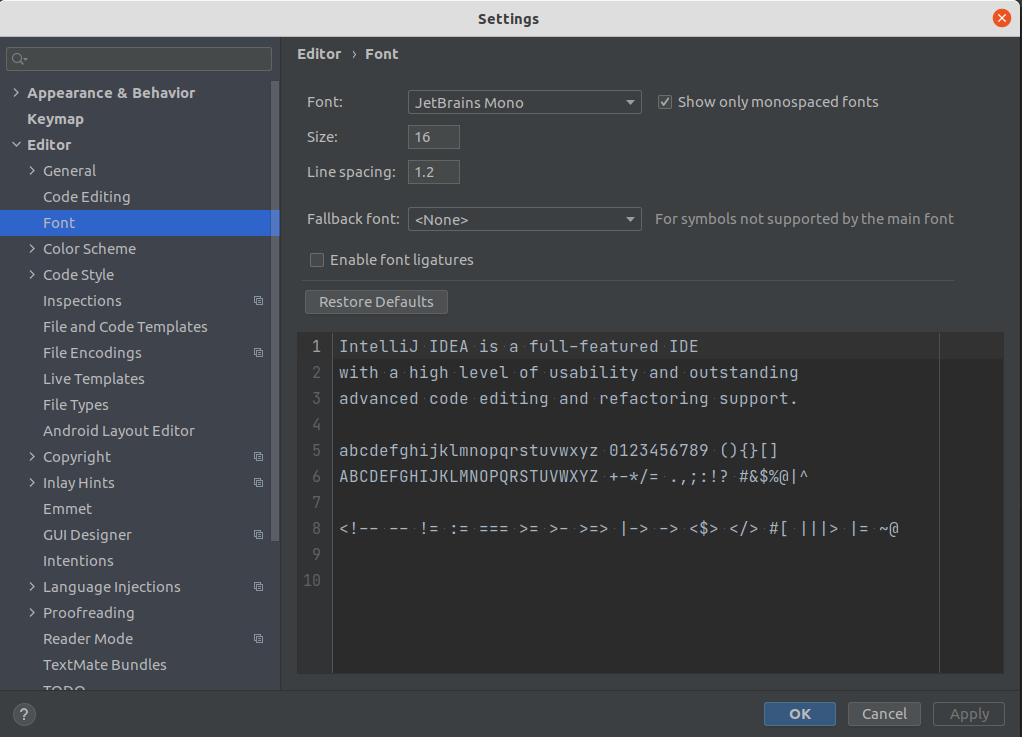
4)设置字体大小
5)打开内存使用器
View | Appearance | Members in Navigation Bar
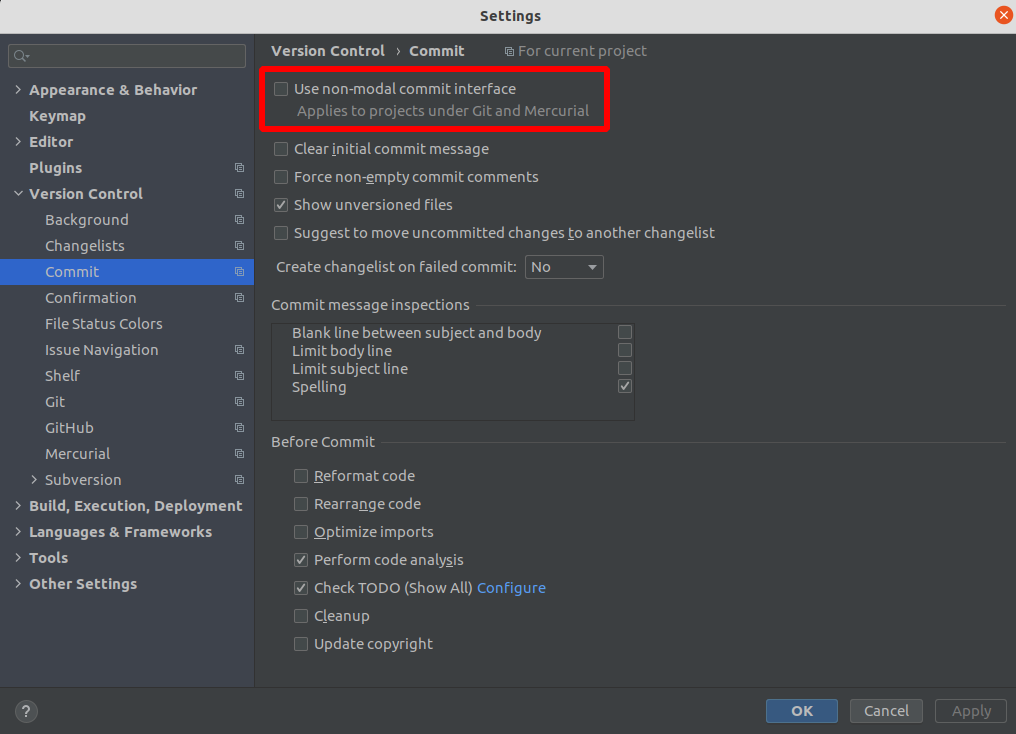
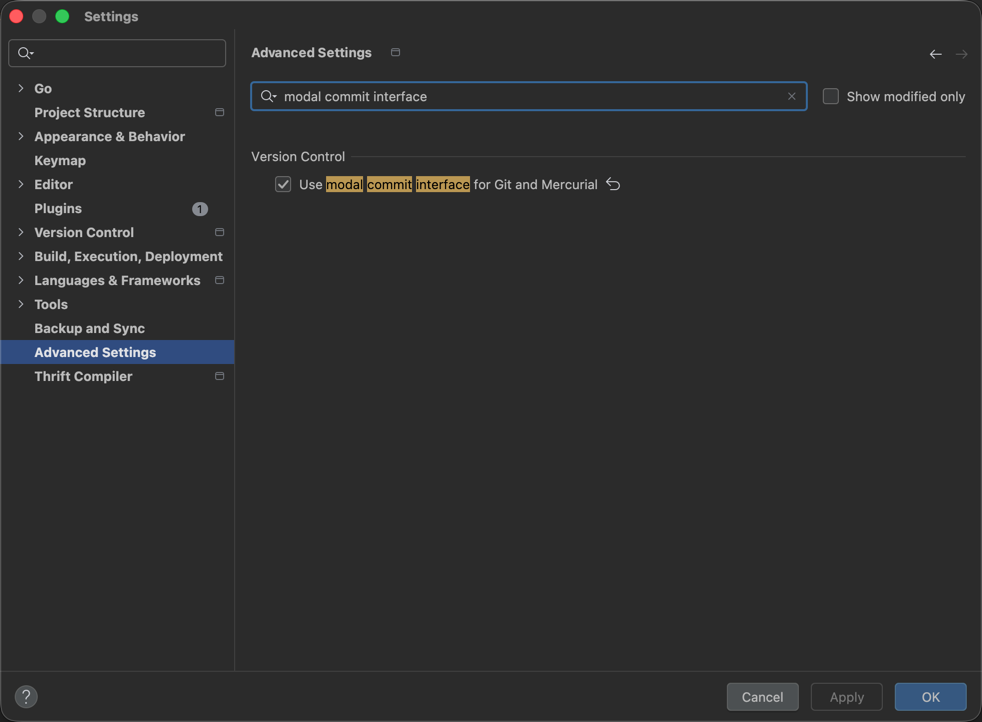
6)Git的显示Local Changes
取消勾选:Settings | Preferences | Version Control |Commit 的Use non-modal commit interface
新版本位置变化,需要勾选Use modal commit interface for Git and Mercurial
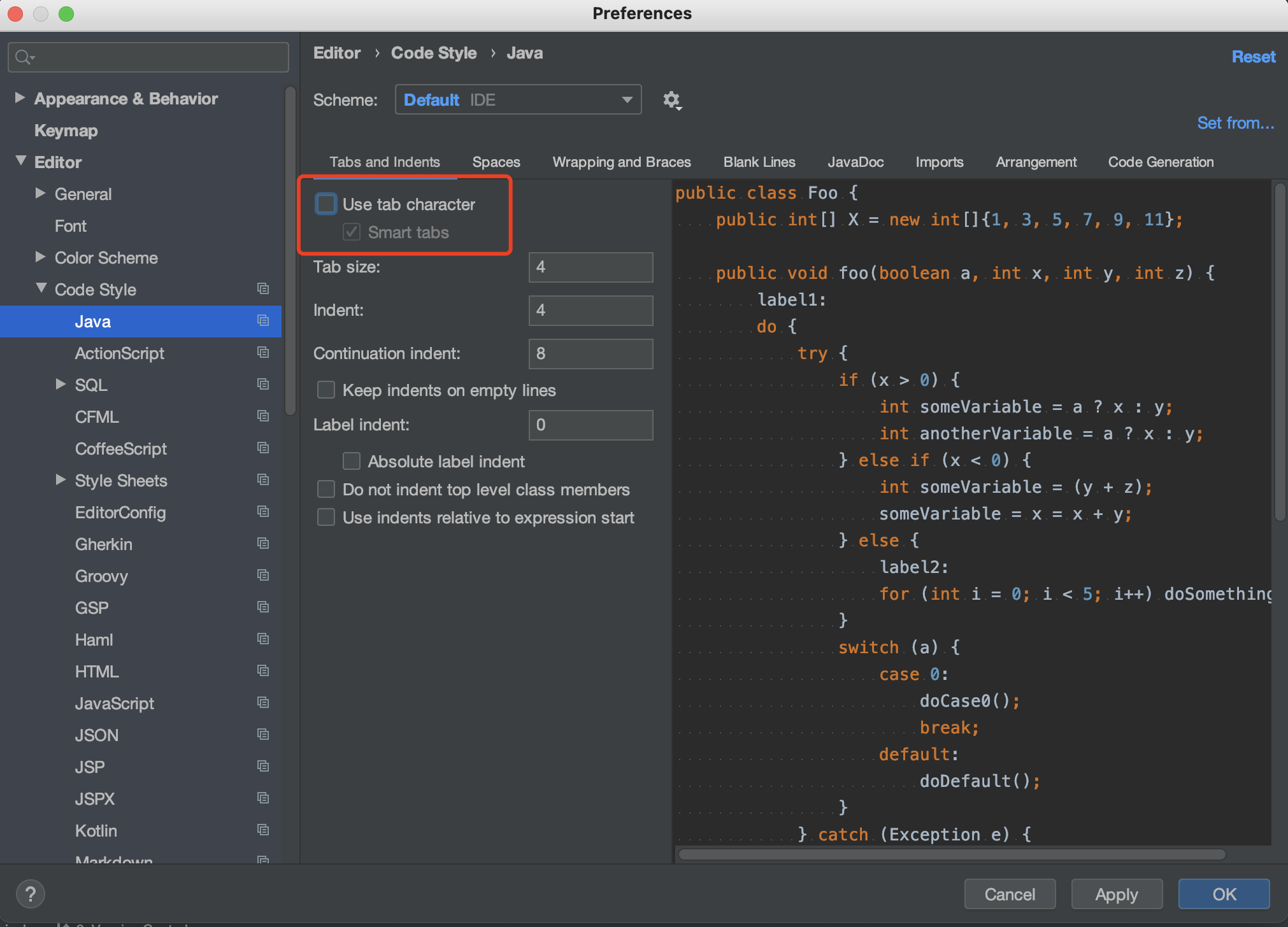
7)替换tab为空格
取消勾选 Preferences - Editor - Code Style - Java页面的Use tab character。
对已有的文件进行替换tab替换(如粘贴代码后可执行本操作)
Edit | Convert Indents | To Spaces
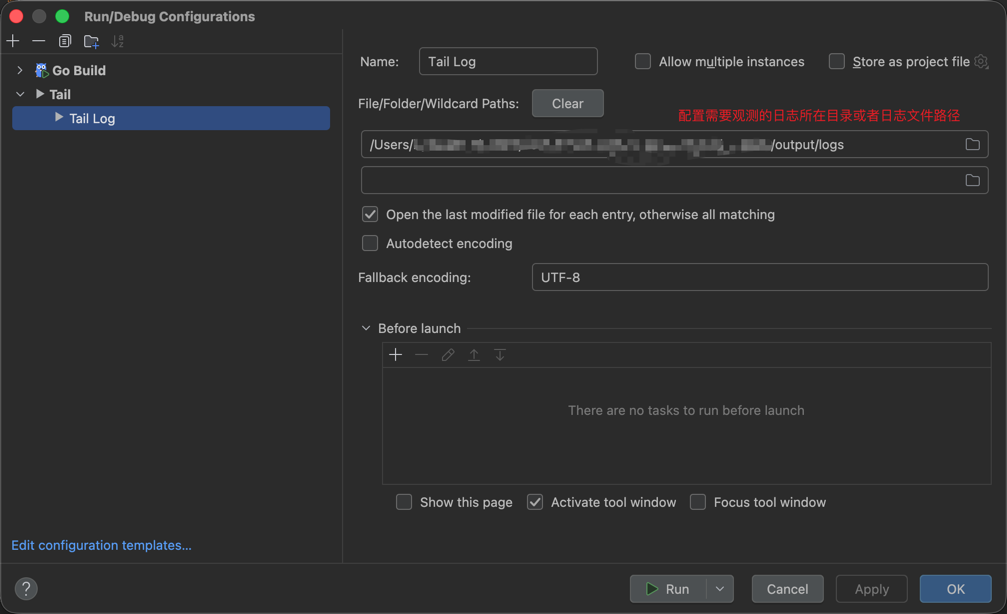
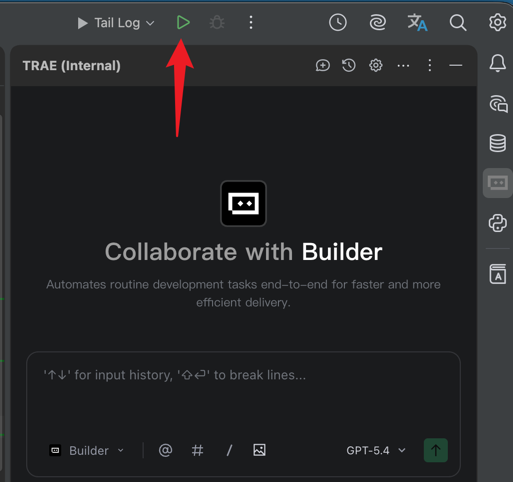
8)使用GrepConsole插件Tail日志文件
2. IDEA配置
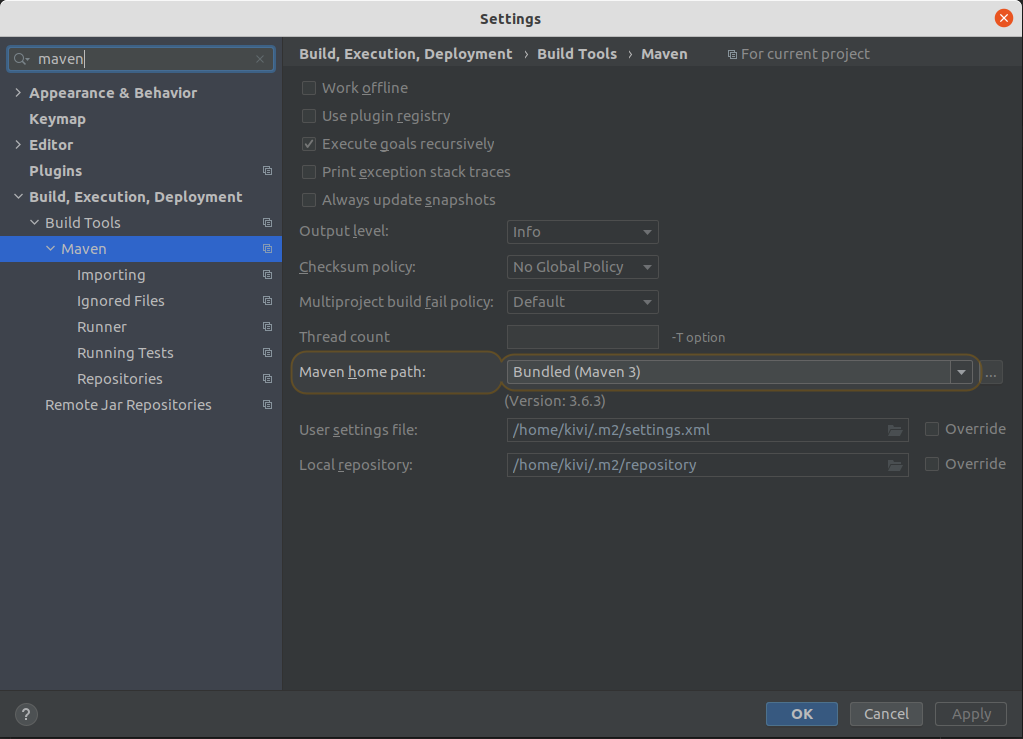
1)配置maven目录
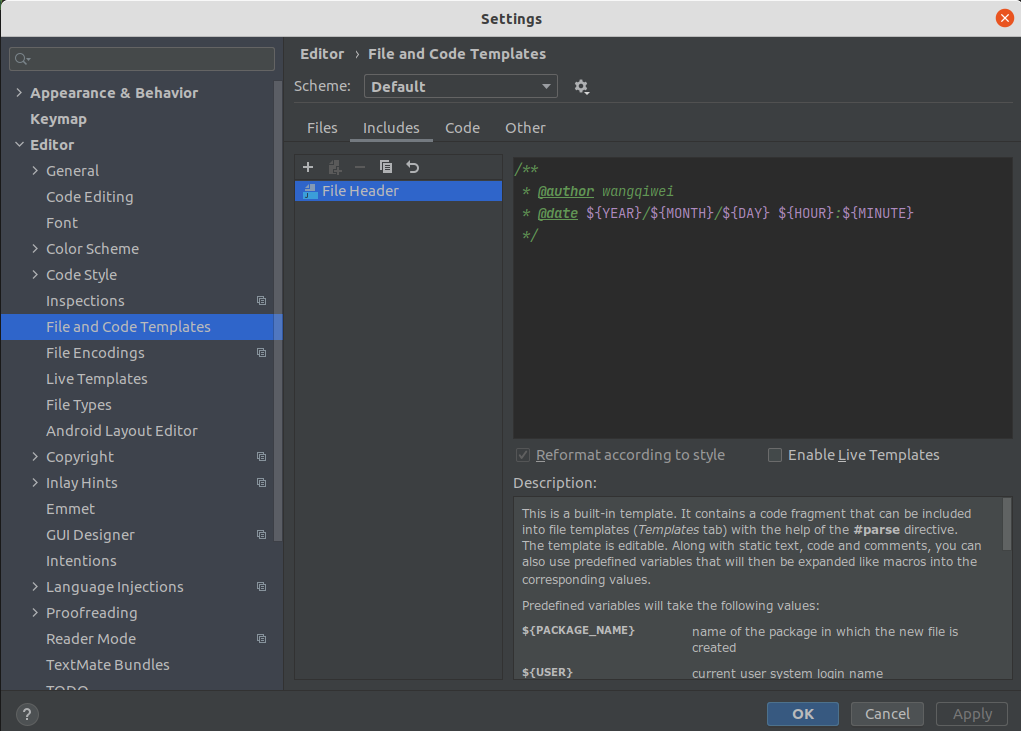
2)设置用户信息
1 | /** |
三、常见问题
通用问题
含中文的文件无法显示/无法创建
原因:当前系统字符集问题
第一步:查看当前字符集
1 | echo $LANG |
第二步:如果不是zh_CN.UTF8,则Google安装中文字符集
第三步:按照完成后,重启IDE即可
IDEA常见问题
cannot find symbol
尝试:1)删除.idea/ 2)执行mvn idea:module
External Libraries下出现Library root
如果IDEA的”External Libraries”下出现”Library root”,那么其有可能和项目的pom文件的依赖有冲突,此时需要执行以下操作:
1)删除.idea/
2)删除xxx.iml
3)重新导入工程
idea的terminal中切换输入法卡死
1)goto Help | Edit Custom VM options…
2)Add -Drecreate.x11.input.method=true to a new line
3)restart IDEA
Goland常见问题
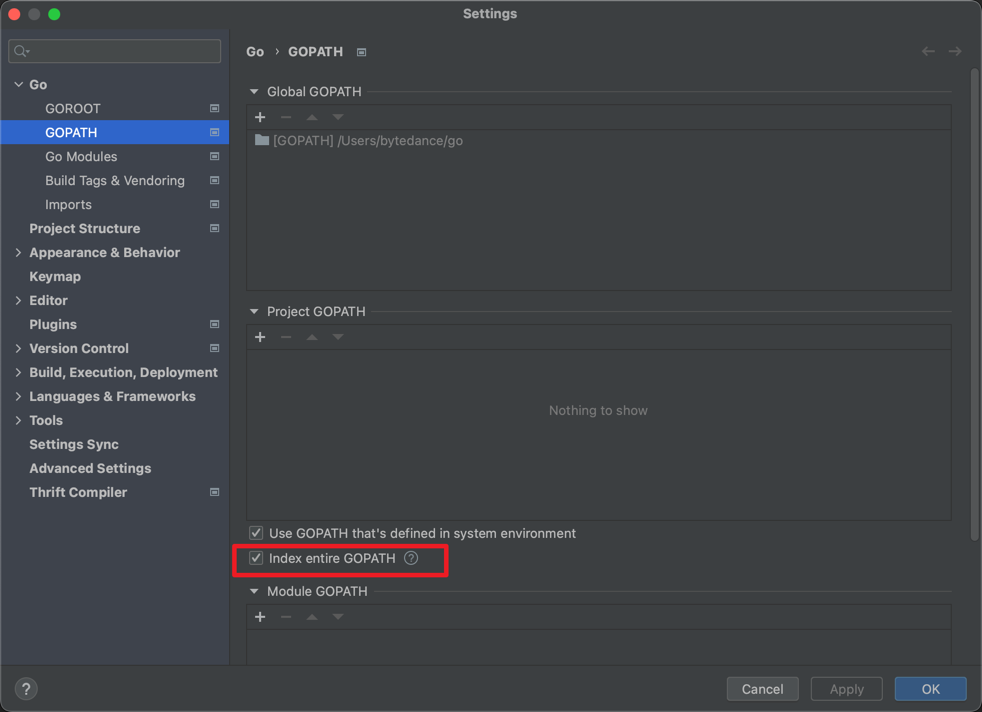
Fix unresolved reference in GoLand
- 方法一 >> See More
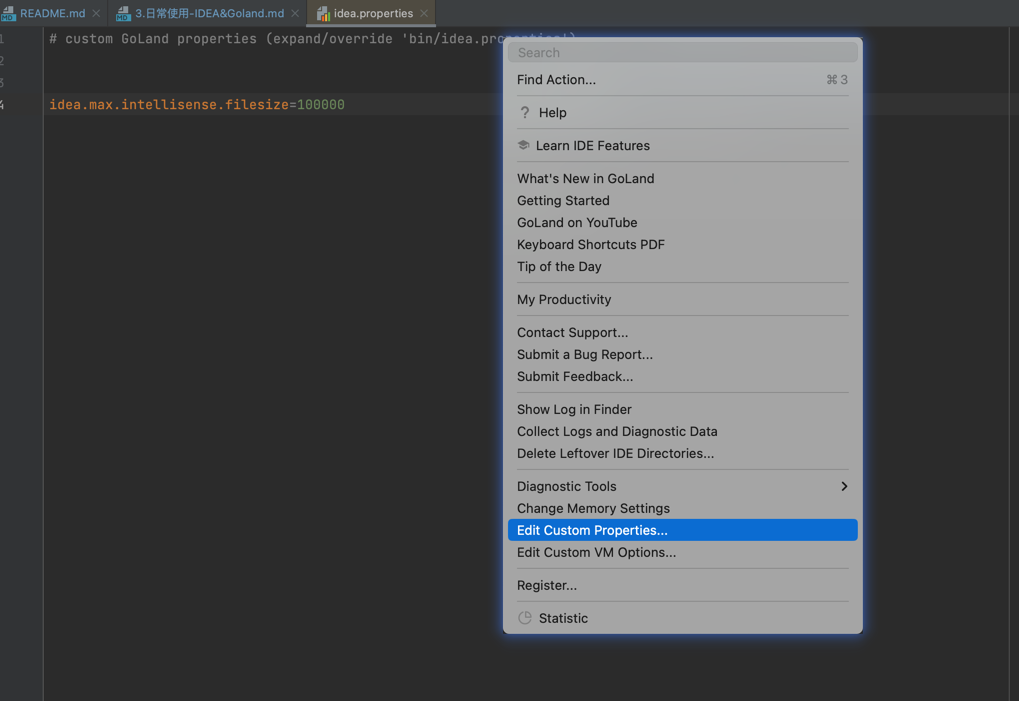
- 方法二
Goland中的System Environment与Terminal不一致
https://intellij-support.jetbrains.com/hc/en-us/community/posts/360000497650/comments/360000793320
If you set the variable in a terminal inside the IDE, those won’t be automatically sent to the run configurations.
You have to use the way mentioned above to set environment variables. Go to Run | Edit Configurations… | Templates | Go Build and set the environment variables there. Then all new run configurations will inherit those.
If you wish to set the variables for the terminal specifically, then go to Settings/Preferences | Tools | Terminal | Environment Variables. Note: the environment variables set here will only affect the GoLand terminal after it’s closed and started again. And they will not affect the Run Configurations.
如果你使用的是zsh,那么你可以把变量配置到/etc/zsh/zshenv,然后source ~/.zshrc。具体原因可查看命令解释man zsh。